
The Blueprint Canvas
One zoomable canvas for segments, jobs, solutions and the steps behind them — and the only place jobs live
One Surface, Three Bands
The Blueprint holds your whole service picture on one surface, read top to bottom in three bands: Segmentation (who the work is for and who does it), Jobs (what needs doing) and Solutions (how each job gets done, step by step, with the people, systems and resources behind every step).
The objects and the links between them are explained in Core Concepts. This section is about working with the canvas itself.
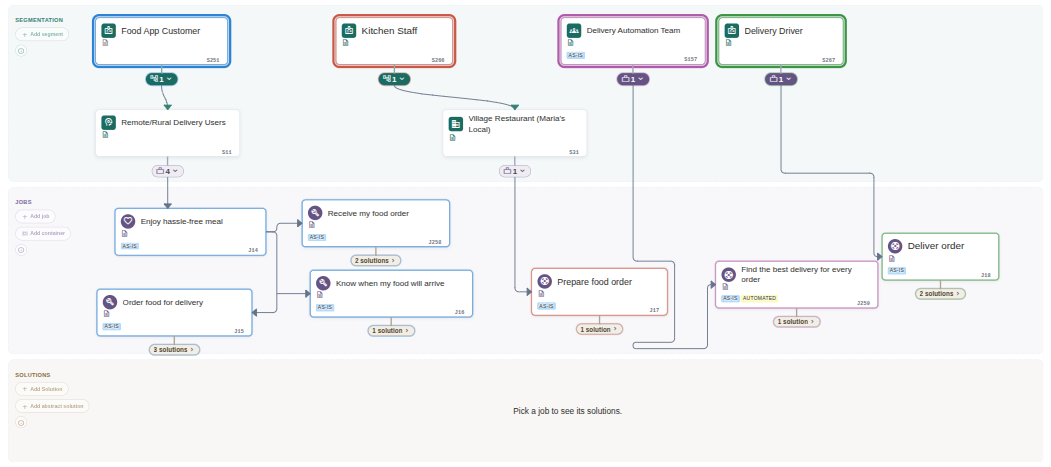
The three bands: segments at the top, their jobs beneath, and the Solutions band waiting for you to pick a job. (Click to zoom)
Segmentation
An ordered rail of segment cards: teams, roles, customer types, personas. A segment can break down into sub-segments, drawn one row below. Click a card to read only its slice of the board.
Jobs
Freely placed cards, wired to the segments that need them done. Each carries a counter of its solutions and can sit inside a named container.
Solutions
Empty until you pick a job. Then its competing solutions open in place as tabs, each with its step tree, actor rows and Frontstage / Backstage lanes of staged resources.
Where to Go Next
Start with the band you are working in:
The top two bands: cards, links, connection boxes, and what a card's badges tell you.
Opening a job, reading the open section, the header badges, and solutions that lean on other solutions.
The step tree, who performs each step, and work that runs side by side.
The Frontstage and Backstage lanes, the resource picker, and the files behind a staged chip.
Reading one track at a time, finding anything on a busy canvas, ID badges and shareable links.
The Canvas band at the foot of the Blueprint: drawing, opening an object at its own link, and sharing it.
The per-job timeline of what was hired, fired and switched, opened from the job card.
The open questions attached to a card. Their canvas badge is covered under Segments & Jobs, the record itself in Features.
Opening the Blueprint and Moving Around It
Choose Blueprint in the main menu; it is also where RoleDream opens after you sign in.
Pan, zoom, fit
- Drag any empty part of the canvas (or a band's background) to pan
- Scroll or pinch to zoom towards the pointer
- The bottom-left toolbar adds a sticky note, zooms in and out, and Fit to view frames the whole Blueprint again
- Cards stay the same size at every zoom level, so nothing needs zooming in first
Adding things where you point
Every band's gutter has its own Add buttons: Add segment, Add job and Add container, Add solution and Add abstract solution. Faster is a right-click: a menu opens at the pointer with the verbs that fit that spot. Over the Jobs band: Add job here and Add container here; inside an open solution section: Add solution here; Add note here everywhere. Whatever you pick lands where you clicked.

Right-click an empty spot and the menu offers what fits that band — here, over the Jobs band. (Click to zoom)
What each band is for
Each band's gutter has an ⓘ button below its Add buttons. It opens a short explainer of what the band holds and how to wire it into the flow, ending with a Learn more → Core Concepts link. An empty band on a fresh workspace shows the same guidance inline. Click the ⓘ again, its ✕, or press Esc to dismiss it.
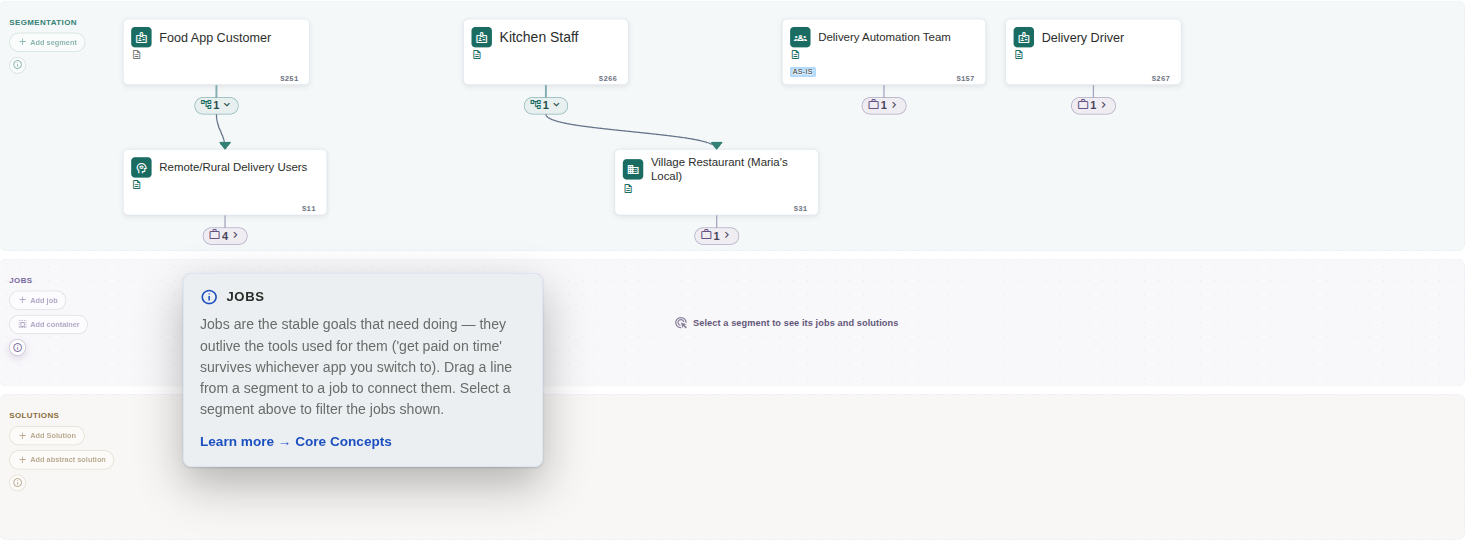
The ⓘ explainer for the Jobs band. Every band has one. (Click to zoom)
Nothing Opens by Itself
With no segment selected, the Jobs band shows only the jobs not yet wired to any segment, with one line in it: "Select a segment to see its jobs and solutions." The Solutions band stays empty until you pick a job: "Pick a job to see its solutions."
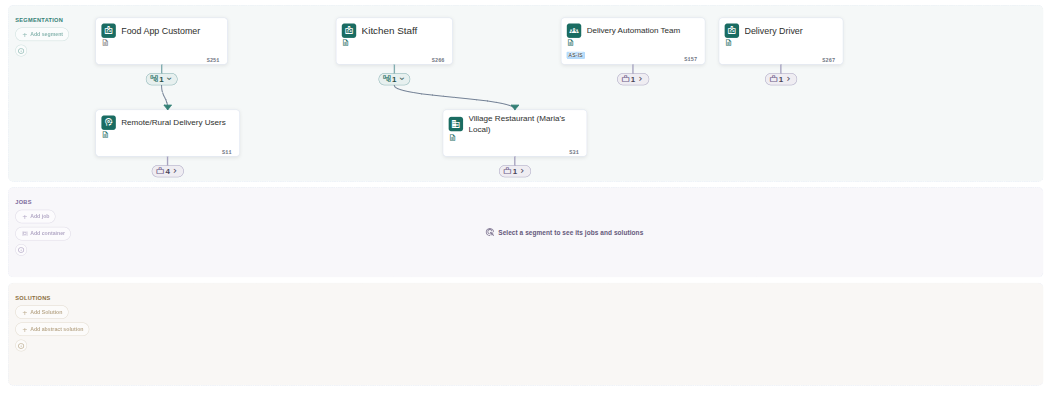
At rest: nothing selected, so nothing open. (Click to zoom)
- Click a segment and its track appears: the sub-segments and jobs it reaches. Shift-click a second segment to compare tracks — see Tracks, Search & Sharing
- Click a job card, or the solutions counter beneath it, and its Solutions section opens in place — see Solutions
- What you had open is remembered: the selected tracks, the open job and its active solution tab all come back when you return. Closing really closes; nothing reopens by itself
Real-Time, Undo, and the Keyboard
Real-time sync
Changes save as you make them and reach everyone on the same Blueprint within moments, without a refresh. A quiet announcement names what a colleague changed.
Undo
Creating, deleting and linking things shows a message with an Undo button for about ten seconds; Ctrl+Z (Cmd+Z on a Mac) presses it for you. Moving a card is different: the Blueprint remembers your last move and Ctrl+Z puts it back. Anything else can be reverted later, without the time limit, from Activity → Audit Log.
Full keyboard path
Tab into the canvas to reach a structured outline of everything on it. Every card, step and staged resource can be reached, changed, reordered and moved without a pointer, and every open, close and newly shown solution is announced. Reordering a whole branch at once is only available there.