
Tracks, Search & Sharing
Reading one slice of the board at a time, finding anything on a busy canvas, and sending a colleague exactly what you see
Reading One Track at a Time
Selecting a segment doesn't open anything — it filters. Click a segment card and only its track stays on the canvas: the sub-segments and jobs it reaches, and those jobs' solutions. Everything on other tracks is hidden, not just faded.
- Click a segment card in the top band. Its connection boxes are a separate control: they open and hide, they don't filter
- The board filters to that track: its sub-segments, their jobs (plus jobs linked to the segment directly), jobs chained to those jobs, and all their solutions. Click a sub-segment and only its own branch stays; click the parent to see the whole group again
- Shift+click another segment to add its track. With two or more tracks selected, each segment card and its lines take a colour of their own
- Click a selected card again to drop it; a plain click on a different card replaces the whole set with that one
- Press Esc to clear the selection. Double-click any empty spot on the board to clear everything at once: the tracks and the open solution section. A single click on empty space changes nothing. With no track selected the Jobs band shows only the jobs not yet wired to any segment
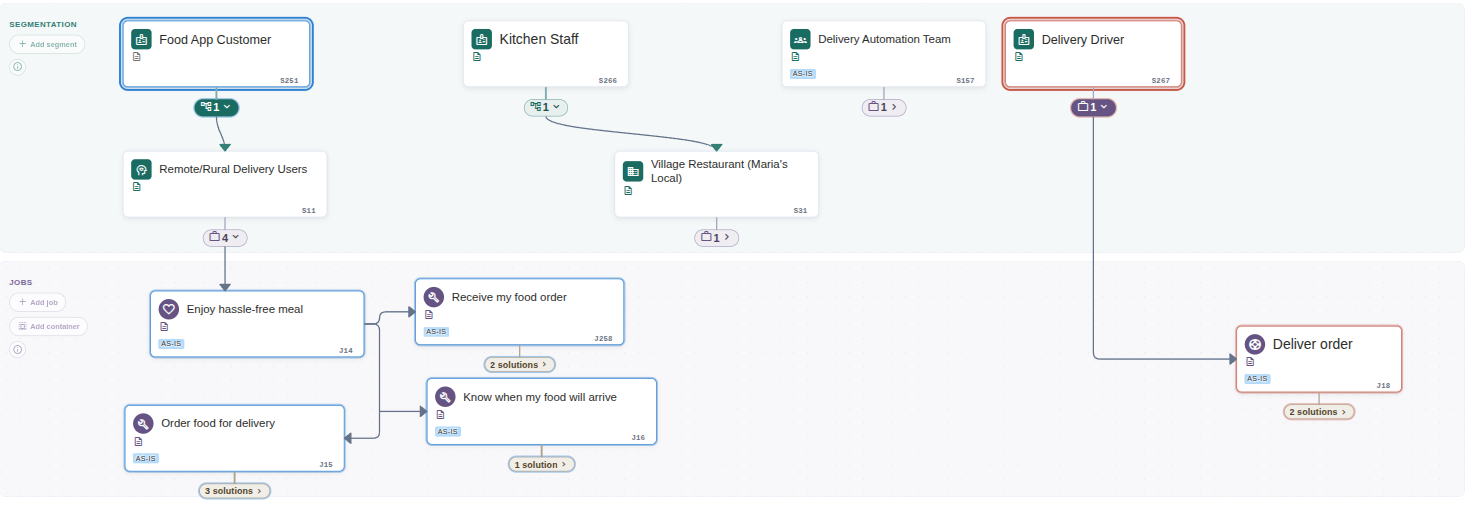
Two tracks compared side by side. Each takes its own colour; the two unselected segments' jobs are off the board entirely. (Click to zoom)
What stays, what goes
Filtering follows connections downward: sub-segments, their jobs, jobs chained to other jobs (in either direction), the solutions of all of them, and any note or container that belongs to them. It never climbs back up: a sub-segment's track does not include its parent's other jobs or its siblings, so Shift+click the siblings you want to compare, or click the parent for all of them. Jobs on no track always stay. The filtered board won't match the numbers on a card's connection boxes, which count one level down through one kind of connection.
Tracks widen when they must
A few actions add a track for you, and say so: activating a search match under a hidden job, following a deep link into one. Tracks a search borrowed are handed back when you clear it; tracks you picked yourself are kept. A solution that hands work to a job on a hidden track does not add that track: the linked solution sits on the rail as a collapsed strip, and opening it switches to its job's track, closing the one you came from. Deselecting the open section's track hides the section; re-adding it brings the section back on the same solution.
Searching the Canvas
Search reaches every card on the canvas — segments, jobs, solutions, steps, staged resources, notes and containers — and matches on names, tags and IDs.
- Press / anywhere on the Blueprint, or click into the search field in the page header
- Type at least two characters: matches are ringed, everything else fades back, and the canvas frames the matches
- Step through matches with the next/previous arrows or Enter and Shift+Enter; the field shows your place as "3 of 10". A single match opens automatically
- Press Esc or the field's ✕ to clear the search
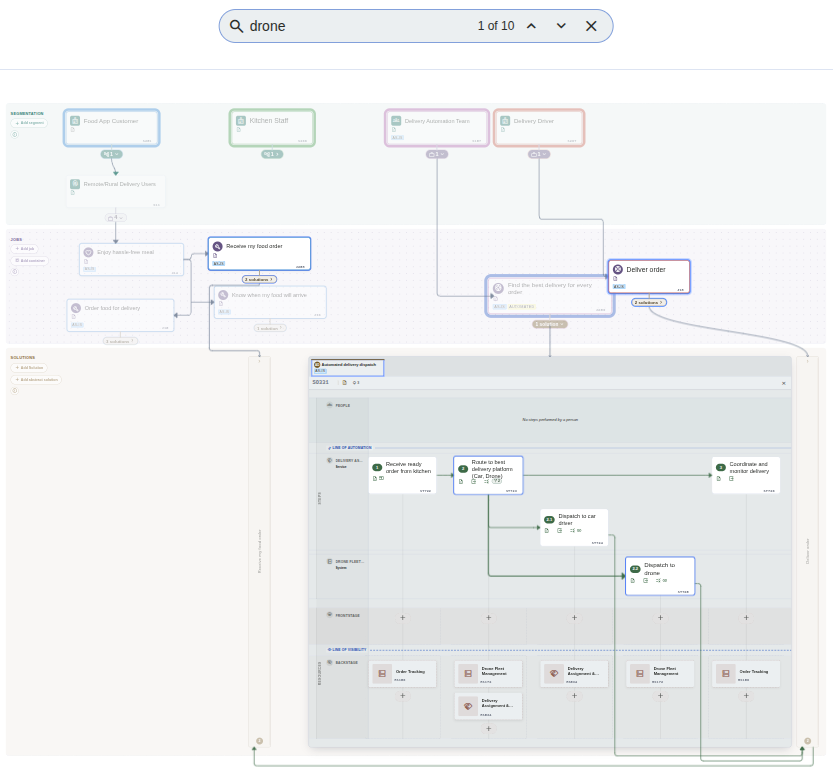
Ten matches for "drone" across jobs, solutions and steps. The rest of the board fades back so the matches stand out. (Click to zoom)
Search opens what it needs to
A match is often somewhere you can't currently see: behind a closed connection box, on an unselected track, or inside a job whose solutions aren't open. As you type, search opens its way down to the matches: expanding the branches that lead to one, collapsing those that lead to none, adding whatever tracks bring a matching flow onto the board, and opening the solutions of the job holding the first match.
- Where several solutions of the open job match, the first opens and the other matching tabs are outlined
- A search that matches nothing changes nothing
- Clearing the search puts your own view back: collapsed branches are collapsed again and borrowed tracks handed back. Tracks you pick yourself while searching are kept
- Clicking a card that isn't a match clears the search; clicking one that is keeps it, so you don't lose your place in the list
Search never hijacks your browser's own Ctrl+F.
ID Badges
Every card carries a short ID badge — a letter for its kind plus a number, for example J1333 for a job or ST42 for a step. Hover a card for a copy button on its badge. IDs are stable and shareable: paste one into the search field to jump to that element, or drop it into a message for a colleague.
Ssegment ·Jjob ·SOsolutionSTstep ·RSresource ·Nnote ·Ccontainer
An exact ID is navigated by kind: a job or segment token rings its card, a solution token opens its section on that tab, a step token opens the section that holds it and rings the step, a note or container token rings that note or frame. If the target's job is on a hidden track, the track is added.
Shareable Links
The address bar keeps up with what you are looking at, so a copied URL reopens the same view for a colleague: selected tracks, running search, zoom and position.
| Link | What it reopens |
|---|---|
/blueprint/id/J1333 | Focused on that one element — any ID kind works, including SO… and ST… |
/blueprint?tracks=S12,S34 | Filtered to the same selected segments |
/blueprint?q=onboarding | With that search already running, matches ringed |
/blueprint?solution=43 | The owning job's section open on that solution's tab |
/blueprint?z=…&cx=…&cy=… | The same zoom and position — added automatically as you move |
- The parts combine: a focus link with a search keeps the search running once it has focused
- A link to something that no longer exists announces the miss and leaves the board at rest; it never errors out
- Older
/jobslinks land on the Blueprint, and/solutions/<id>links open that solution