
Solutions
Opening a job's competing solutions in place, reading the open section, and reusing work across jobs
Opening a Job's Solutions
The Blueprint has no separate detail page. Click a job card, or the solutions counter beneath it, and that job's Solutions section unfolds in place below the Jobs band, with the rest of the canvas still in view. A line runs from the counter into the section, so you always know which job you are reading.
- A job with solutions carries a counter below its card — "3 solutions", in the Solutions band's colour, with a chevron that turns when the section is open. A job with none has no counter; open it from the card and it lands in its "Add solution" state
- Click the open job's counter again, or the section's ✕, to close it. Clicking a different job moves the section there; one section is open at a time
- Linked solutions stay collapsed until you open them. If the solution hands work to a solution under a hidden job, that solution appears on the rail as a collapsed strip with the connection drawn to it, but its job is not revealed. Click the strip to open it: the view switches to that job's track, the track you came from closes, and the announcement says so. Lines leaving the open solution are blue; every other delegation line between solutions is green
- Only direct partners are shown. With one track selected, the rail shows the solutions the open one hands work to and the ones that hand work to it, and only the lines between them and the open solution. Open a partner to see its own partners. Shift-select several tracks to compare, and the whole chain of connected solutions is shown with every line drawn
- What you had open is remembered, down to the active tab
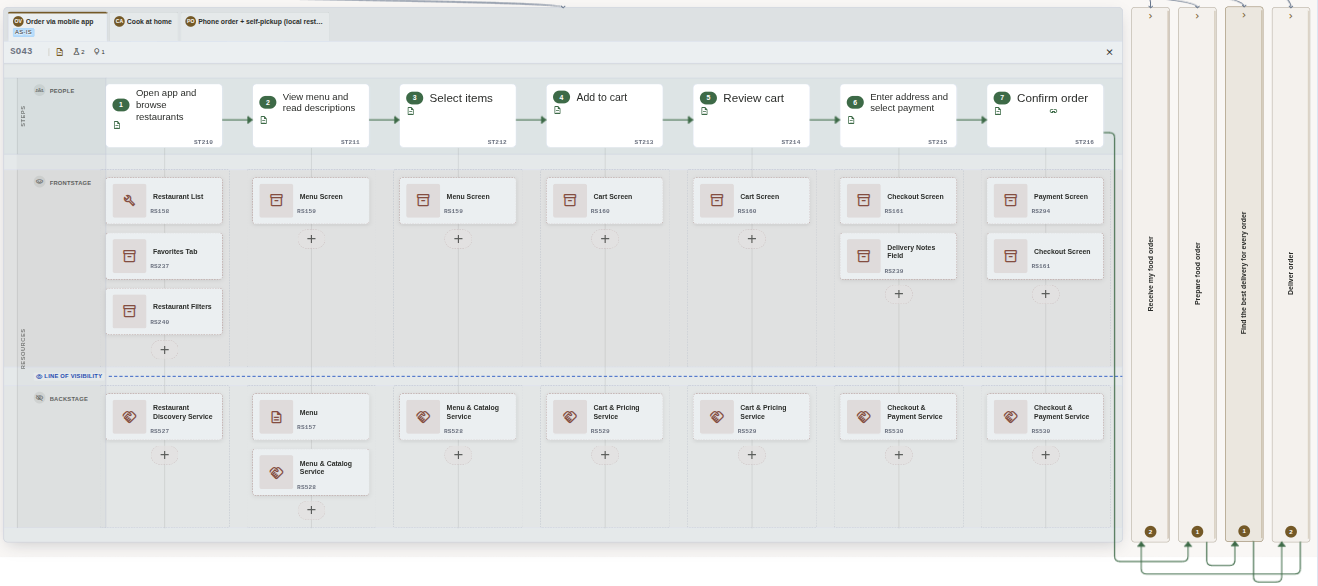
One job, three competing solutions as tabs. The active tab shows its step sequence and the resources staged under each step; the slim spines to the right are the solutions its steps hand work to. (Click to zoom)
What the Open Section Shows
- A tab per solution, sized to its name, with its tags beneath; click one to switch approaches. Hover a tab and its edit and delete controls appear inside it, so no neighbouring tab shifts
- A header for the selected solution: its ID badge, a description badge, and a badge for each kind of thing attached or linked to it — see What This Solution Is Connected To below
- The step tree, in order, with sub-steps and parallel branches, laid out in actor rows — see Steps, Actors & Branches
- Frontstage and Backstage lanes beneath the steps, one slot per step, holding the resources each step uses — see Staging & Attachments
- An Add solution tab at the end of the row
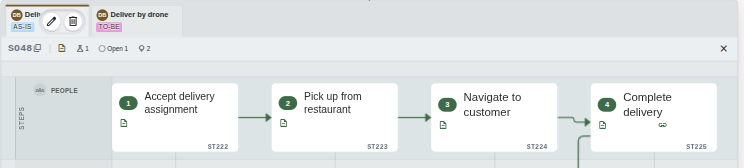
Hover a tab and its controls appear inside it. The header beneath is a row of badges. (Click to zoom)
Right-click inside the open section for Add solution here, the same verb as the Add solution tab.
What This Solution Is Connected To
The selected solution's header is a row of small badges, each a glyph and a number:
- Attachments — one badge each for images, files and links attached to this solution
- Associations — one badge per kind of thing linked: research, requests, other solutions, goals, opportunities, hiring decisions. Linked requests split further, one badge per status — draft, open, in progress, blocked, resolved, rejected — each with its status name and count. A badge appears only when there is something to count. Resources have no badge: they are already on screen as the chips staged under the steps
- A description badge, always present, saying whether this solution has one. Hover it to read the description in full
- If the header runs out of room, the association badges that did not fit collapse into a single +2 chip; hover it to see them all
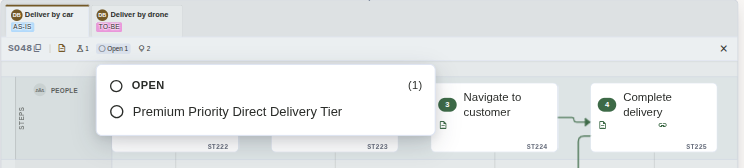
Hover a badge and it lists what it counts. Click a row and the thing opens. (Click to zoom)
Hover a badge and it lists what it counts, by name, under a heading with the true total. Click a row and the thing opens. A research item, request or opportunity opens in a panel over the canvas. A linked solution switches to that solution in place: its own tab if it belongs to this job, otherwise the canvas moves to the owning job and opens it there, switching to that job's track if the job was hidden. An image or file opens the attachment viewer at that item; a link opens in a new browser tab, and its row wears a small leaving-the-app arrow. Rows with nowhere to go — a link that isn't a real web address, a record with no viewer of its own — are listed but not clickable.
Click the badge itself to pin the list open; Esc or a click outside dismisses it. A list longer than eight ends in +3 more, which takes you to the solution's form, where the complete set can be edited. Closing that form re-reads the badges, so a link you just added is counted at once.
The opportunities badge is the one exception: clicking it opens the Linked items dialog for this solution instead of pinning the list, so you can link, unlink or create opportunities right there — the same dialog a job card's badge opens (see Segments & Jobs).
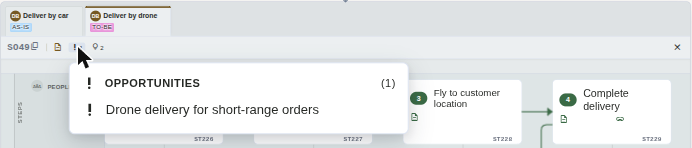
The opportunities badge on a solution header. Hover lists, click manages. (Click to zoom)
Solutions That Lean on Other Solutions
A step in one job's solution often hands its work to a whole other process — an approval flow, a notification routine, a shared fulfilment pipeline. Instead of copying those steps everywhere, a step can use another solution, and work that several jobs share can live once as an abstract solution that belongs to no job.
Linking a step to a solution
- Open the step's form and pick a solution under Uses solution — search by name or ID
- The step's card gains a link badge (hover it to see the used solution's
SO…ID), and a connector line runs from the step to that solution - Both ends of the link come to meet you. While the section is open, every solution its steps hand work to appears beside it as a slim vertical spine — its owner job's group, or the blue Abstract group — with the connector running to that spine. So does every solution that hands work to the one you are reading, with its line running the other way. Click a spine to open it
- If the used solution belongs to the same job there is no line: it is already one of the section's tabs, and that tab is marked instead
- These lines are drawn for what you have open. Close the section and the borrowed spines go with it; switch tabs and the band re-draws. The whole chain stays on the rail: every group connected through delegation, in either direction and however many hops away, is shown together whichever member you open
- Follow the link by clicking the step's badge (or the keyboard outline's Go to linked solution): a same-job target becomes the active tab; a target under another job opens that job's section on it, switching to the track that reaches it if the job was hidden
- Clear the choice in the step's form to remove the link
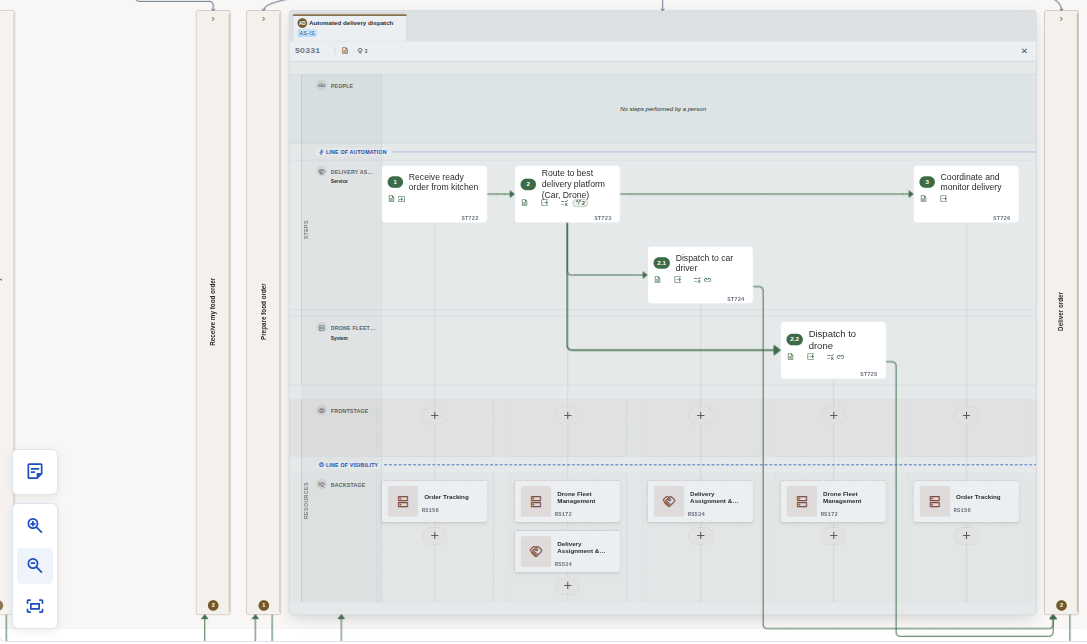
Delegation drawn on the canvas: the two dispatch steps hand off to the "Deliver order" solution, whose spine is on the rail because this section is open. (Click to zoom)
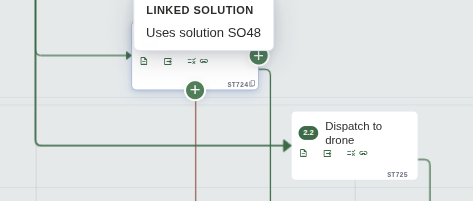
Hover the badge to see which solution the step uses. (Click to zoom)
Abstract solutions
An abstract solution is a solution without a job — a helper process used by others: "Send customer notification", "Escalate to on-call", "Verify identity". Create one with Add abstract solution in the Solutions band's gutter (beside Add solution), give it steps like any other solution, and link to it from as many steps, in as many jobs, as need it.
- Each abstract solution is its own slim spine at the end of the Solutions band, in its own blue so it never reads as a job's group. The spine stays on the band, open or closed, only while nothing links into it; it is then the only way in, since there is no job card to click. Once a step uses it, it belongs to that chain and appears whenever any member of the chain is open. Click a spine and it opens like a job's solutions
- They are full solutions: steps, sub-steps, systems performing steps, staging lanes
- Any solution can be re-homed from its form: the Job selector carries a No job (abstract solution) option, so an existing solution can be made abstract (or an abstract one adopted by a job) without recreating it
- Re-homing works on the canvas too. Drag a job onto an Abstract tab — start a connection from the job card's edge and drop it on the tab in the open Abstract section — and that solution is assigned to the job. In the other direction, hover the line tying an open job to its section and click the ✕ at its midpoint to move the active solution to Abstract. Both offer an Undo button for about ten seconds instead of a confirmation dialog
Linked and abstract solutions are reachable through search and the keyboard outline, and an abstract solution's ID (SO…) can be pasted into search or shared as a deep link; it opens the Abstract group's section.
Adding, Editing and Deleting
- Add solution — the tab at the end of the row, the gutter button, or the right-click menu. A new solution becomes the active tab straight away
- Edit — the pencil inside a hovered tab opens the solution form: name, description, tags, job, and the full association and attachment panels the header badges summarise
- Delete — the bin inside a hovered tab. The solution goes at once with an Undo button for about ten seconds; if it was the last solution in the section, the section closes with it and the announcement says so
One limit of undo on the canvas: something you bring back reappears, but not where you had placed it, and as a new item, so old links to it stay dead. The same change can also be reverted later, without the time limit, from Activity → Audit Log.
Efficiency
The open solution's header carries an efficiency badge: the lead time of its default measurement and the flow efficiency (how much of that time is active work rather than waiting), for example 2d 4h · 35%. A leading ~ means some steps have no timing yet, so the figure is a lower bound; Add timing means nothing has been measured. Hover the badge for the breakdown, or click it to open the Efficiency window. From the keyboard, the same window opens from the solution's entry in the screen-reader outline.
- Measurements — a named set of step timings (an estimate, an observed period or a target). One measurement is the default, and the badge shows that one. Use the picker to switch, New to start another, and the ⋯ menu to edit its details, set it as the default, save a copy or delete it
- Step values — for every step without sub-steps, type the active time and the wait time (
90m,1h 30m,1.5hand2dall work; a bare number is minutes), the first-pass percentage, the sample size and, optionally, an hourly-rate override. Leave a cell empty when you don't know the value — empty means unknown, never zero. When you enter an active or wait time, an empty wait time is filled with0and an empty first-pass percentage with100; change them before saving if they don't fit. Steps with sub-steps are totalled from their sub-steps. A step linked to another solution adds that solution's time (from its default measurement); type only the extra time around it, such as a handover, or0when there is none, so the step counts as measured. The linked solution's own steps still have to be measured for the totals to be complete: the row says how many of them are, and Open switches the window to that solution (Back returns). A time marked~is a lower bound — part of it is still unknown. Press Save to store every change at once - No measurement yet? Just type values — your first save creates a measurement called Current
- Currency — measurements use the company currency (Settings → Company → General) unless you give one a 3-letter code of its own under Edit details. Changing the company currency does not convert existing rates or amounts
- Cost uses the step's hourly-rate override, or else the rate of the resource or segment that performs it. The table shows where each rate comes from
- Save a copy to keep a named baseline, then use Compare to see how lead, wait, active time, flow efficiency and cost changed — in total, on the steps measured in both (common basis), and step by step. Each change shows an arrow and a sign; lower time and cost are better
- Warnings from the calculation (a loop in the steps, a missing rate, mixed currencies…) are listed above the totals as written
Efficiency changes have no Undo. Deleting a measurement asks first and says how many step values go with it; if it was the default, the measurement with the latest period becomes the default, and deleting the last one returns every step to unknown.