
Opportunities
Capture a gap or an idea, track it from spotted to solved, and connect it to the work it affects
Opportunities Are the Open Questions
An opportunity is something worth pursuing that hasn't been resolved yet: a gap you've spotted, a job that's underserved, an idea for a new solution. Where a job describes work that needs doing and a solution describes how it's done, an opportunity is the space between — a candidate for a future job, goal, or solution that hasn't been committed to.
Opportunities live alongside Segments, Research, Requests, and Resources as their own record type, and they connect to anything relevant — the goal they'd advance, the segment they'd help, the job they'd change, a solution or solution step they'd replace, the research that surfaced them, a request that raised them, or a hiring decision that acted on them.
How opportunities sit in the wider model is explained in Core Concepts — this page is about working with them.
What the form doesn't tell you
- There's no type picker. Unlike Segments, Research, Requests, and Resources, Opportunities aren't split into administrator-defined types — every opportunity is just an opportunity, distinguished by its status and priority rather than a category.
- Status tracks where the idea stands — identified, validated, solved, or discarded — and moves independently of priority, which says how urgent it is.
- Links are where the value is. An opportunity sitting on its own is just a note; connecting it to the goal, segment, or job it affects is what makes it show up everywhere that matters — including on the Blueprint canvas.
Finding the Right Opportunities
Opportunities in the main menu (right after Resources) lists them with the same filter-and-browse experience as the other entity pages, plus two filters specific to opportunities.
Status & priority
Filter to any combination of identified, validated, solved, and discarded, and any combination of priority levels — the same multi-select pattern as status/priority filters elsewhere in the app.
Has a solution / has a goal
Two three-way filters — yes / no / any — for whether the opportunity is already linked to a solution and whether it's linked to a goal. Useful for finding opportunities nobody has picked up yet ("has a solution: no") or ones raised without a clear objective behind them ("has a goal: no").
Filter by linked object
Narrow the list to opportunities linked to a specific segment, job, solution, or other record — useful when you're looking at one part of the model and want to know what open questions touch it.
Shareable, saved, URL-canonical
Every filter — including the two Opportunities-specific ones — lives in the URL, so a filtered view can be bookmarked or shared, and it can be saved as a Stored View the same way as on Segments, Research, Requests, and Resources.
Creating, editing, and deleting an opportunity uses the same form and confirmation dialogs as the other entity pages — see Managing Your Data for the shared mechanics (attachments, tags, undo).
Linking an Opportunity to the Rest of the Model
An opportunity can link to a goal, segment, job, solution, solution step, research record, request, or hiring decision — the same universal ObjectLink system used everywhere else, so a link is bidirectional and shows up from both ends.
The linked-items badge
Wherever an opportunity's links are shown, they use the same small badge-and-modal pattern: a badge names the count of links in each connected category. Hovering (or tapping) a badge opens a read-only dropdown listing those items by name, each clickable through to its own detail. A "view all" affordance escalates to a fuller dialog where links can be added, removed, or created on the spot, without leaving the opportunity you started from.
This is a shared, reusable pattern — the same badge-and-modal shows up on the Blueprint canvas and on Hiring Decisions (below), always reading the same live link count no matter where it's shown.
Opportunities on the Blueprint
Segment and job cards on the Blueprint canvas carry a small opportunity-count badge alongside the card's other indicators. Hovering the badge lists the linked opportunities by name; clicking it opens the same view-all dialog used everywhere else, so you can see — or start addressing — the open questions attached to a card without leaving the canvas. The count is live: a colleague linking an opportunity to a card updates its badge on your screen.
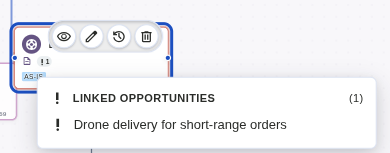
A job card's opportunity badge and its hover list. Click the badge for the view-all dialog. (Click to zoom)
Opportunities on Hiring Decisions
On the Hiring Decisions timeline, each row carries the same read-only opportunity badge, so you can see at a glance which opportunities a hire, fire, or switch relates to. Opening a decision's form adds an Opportunities section where links can be reviewed and changed directly, including while creating a brand-new decision — links picked before the decision is saved are held and applied the moment it's created.
Why this matters
It closes the loop: an opportunity identifies a gap, a hiring decision records what was actually done about it, and the two stay visibly connected — so "did we ever act on this?" and "why did we make this change?" both have an answer on the page you're already looking at.