
Staging & Attachments
Putting the resources behind each step into the Frontstage or Backstage lane — and the files behind each chip
Frontstage and Backstage
Beneath the steps of an open solution sit two staging lanes, one slot per step: Frontstage holds what the customer sees and touches, Backstage the work behind it. A resource in a slot records that this step uses this tool. The dashed line of visibility between the lanes is the classic service-blueprint boundary.
Resources themselves — tree, types, attachments, impact — are covered in Resources. This page is about placing them on the canvas.
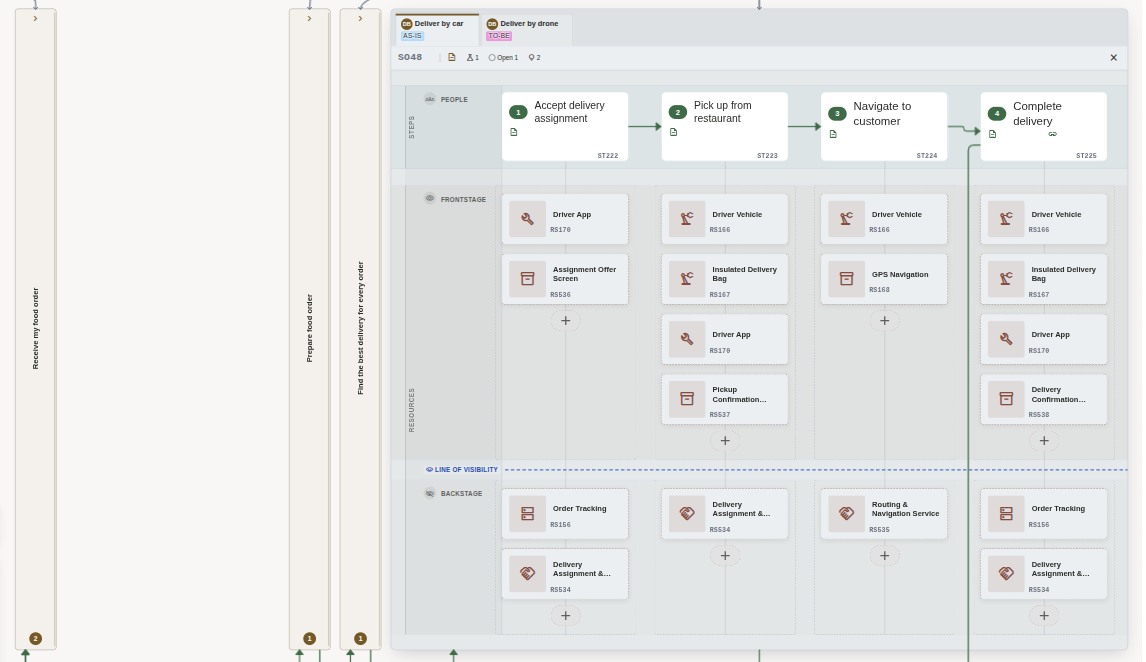
Resources staged under the steps that use them, in the lane that matches whether the customer sees them. Every slot ends with a +. (Click to zoom)
Separate from who performs the step. The lanes say whether the customer can see a resource; who does the step is its actor row. A person's step can stage backstage tools, and an automated step a frontstage screen. See Steps, Actors & Branches.
Staging a Resource Under a Step
From a slot
A slot's + opens the picker for that step and lane: your whole resource tree with a checkbox per resource. Every tick applies immediately; there is no separate save, and the footer says so. Search the tree for a deep match, or create a resource on the spot with Create resource or a row's own + (a sub-resource).
Flip, move, or unstage
Drag a chip to the other lane to flip it, or to another step's slot to move it; a toggle on the chip flips it without dragging. Its ✕ unstages the resource from that step — never deletes it — with an Undo button for about ten seconds.
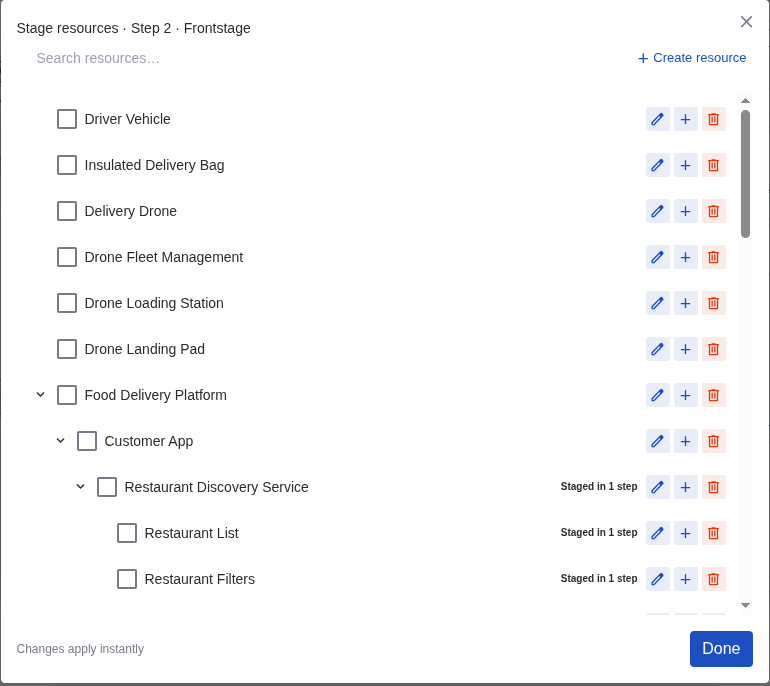
The picker for one step and one lane. Ticks apply as you make them; Done just closes it. (Click to zoom)
- Already staged in the other lane? The row says "In Backstage — check to move here", and ticking it moves the resource rather than adding a copy
- Staged elsewhere? A row notes "Staged in 2 steps": one resource can be staged under as many steps, in as many solutions, as use it. Each is its own chip
- Untick to unstage. Clearing a checkbox removes the chip from that step without an undo toast; tick it again to restore it
- Two resources under one step stack in the slot. Hover a chip and its step and column light up; hover a step and its chips do
What a Staged Chip Carries
A staged chip carries a thumbnail of the resource's first image (or a glyph for its type) and small counts of its images, files and links. Name, ID and thumbnail come from the resource record, so editing the resource updates every chip that stages it.
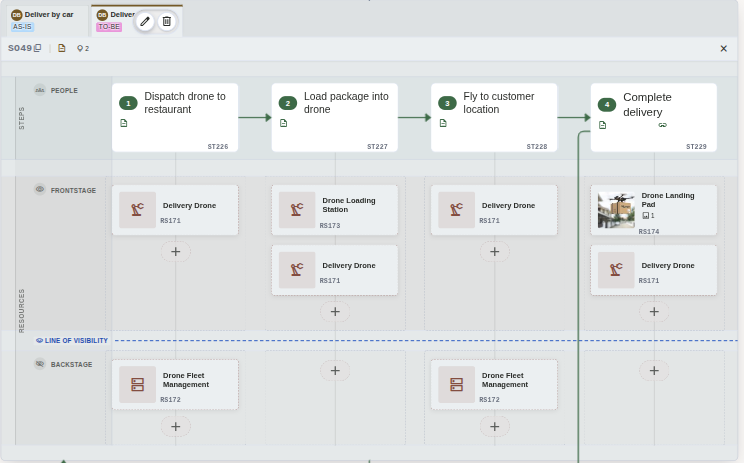
A chip with an image attached shows it as a thumbnail; the others show their type glyph. (Click to zoom)
The quick-look viewer
Click a chip's thumbnail (or glyph) for a quick look at everything attached to the resource, without leaving the canvas:
- Images full-size, with next/previous, a counter and zoom controls
- Files downloading in a click
- Links opening in a new tab — a link that isn't a real web address is listed but inert
- The resource's description, and an Edit button that opens its form
Esc closes it and returns focus to the canvas. If an image fails to load, the viewer says so and offers a retry.
Editing from the chip
A chip's edit control opens the resource form — name, type, description, tags, attachments — and saving refreshes the chip's counts in place. The solution's header badges re-read their attachment counts whenever you close the viewer or the form.
Staging without a mouse
The keyboard outline gives every step a "Stage a resource under step…" control and every resource a "Stage under a step…" control, with flip, move and unstage as ordinary buttons, and each staged chip a button that opens its attachment preview. Lane labels and position — never colour alone — tell Frontstage from Backstage, and every change is announced ("Staged Driver App under step 2 in Frontstage").
Why Stage Instead of Just Listing
A staged chip is a real link between a step and a resource, so it reads from both ends: the solution using it and the job above both know about it, with no second list to maintain. Open the resource and its associations show every solution it is used in; open the job and read what each step depends on, split by the line of visibility.
Questions this answers
- - Impact: what breaks if we retire this system?
- - Criticality: which tools does almost everything run through?
- - Exposure: which of our tools does the customer actually see?
- - Fragmentation: which single step needs five different tools to get through it?