
Managing Your Data
Browse, create, and manage all your data across the four core categories
Using Data Browsers
RoleDream organizes all data into four core categories: Segments, Research, Requests, and Resources. Each category has its own browser with consistent navigation, filtering, and CRUD operations. Personas and customers are managed under Segments.
Data browsers provide both card and table views, advanced filtering by type/tags/relationships, and support for hierarchical data structures.
Every browser opens with a control row directly under the page title, above the type chips and the filter panel. That row holds the view controls — the Cards/Table toggle (and the Views menu, if your workspace has it) — followed by the count of matching records, with the "Add" button on the right.
The Four Core Categories
Segments
The people and groups you serve — customer profiles, customers, and personas
Examples: Busy Professional, Price-Sensitive Shopper, individual Customers
Research
Customer insights and discovery work
Examples: Interviews, Surveys, Observations
Requests
Customer needs and reported issues
Examples: Feature Requests, Bug Reports, Customer Requests
Resources
Tools, artifacts, and supporting materials
Examples: APIs, Documents, Tools, Templates
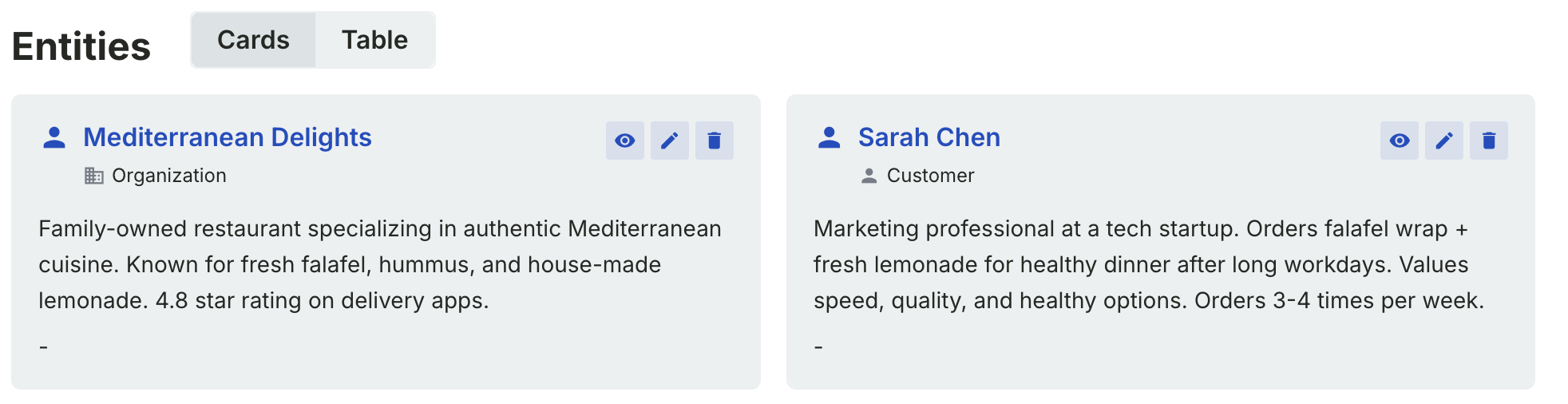
Data browser in cards view mode showing multiple records with type badges, tags, and quick actions. (Click to zoom)
View Modes
grid_view Cards View
- checkVisual overview with type icons and badges
- checkShows tags, descriptions, and quick actions
- checkBest for browsing and exploration
table_chart Table View
- checkCompact list with sortable columns
- checkShows type, tags, and relationship counts
- checkBest for scanning large datasets
cloud_done Your Cards/Table choice is remembered
Each browser remembers whether you last used Cards or Table, separately per category. The choice is stored with your account rather than in the browser, so it now follows you across sign-outs, workspace switches and devices — open Segments on a different computer and it looks the way you left it.
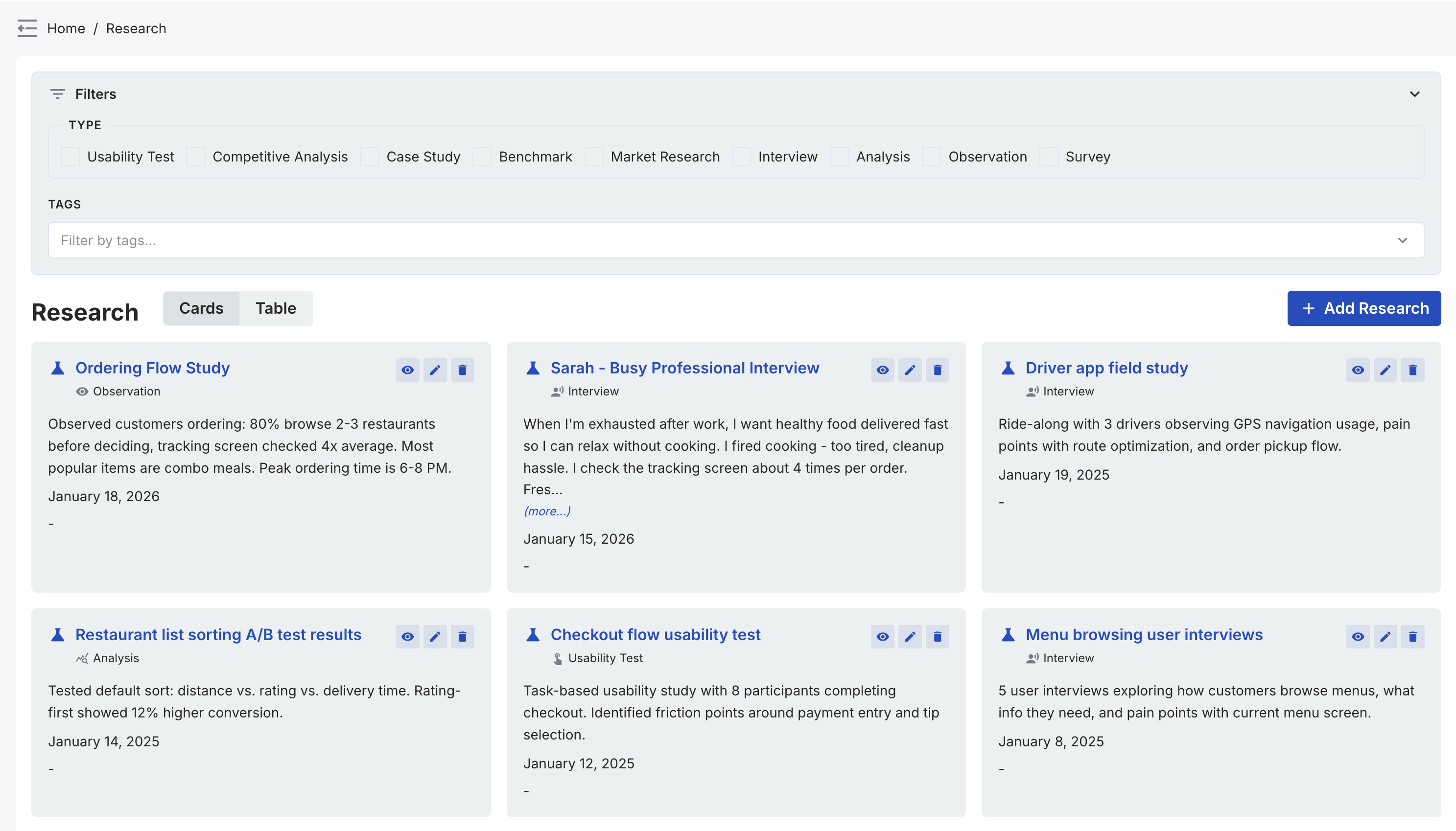
Data browser in table/list view mode showing compact rows with type, tags, and action buttons. (Click to zoom)
Stored Views
A view is a named snapshot of how you are looking at a category: the filters you set, the sort order, and whether you are in Cards or Table. Set a list up once, save it, and come back to it with one click instead of rebuilding the filters every time.
Views are available on Segments, Research, Requests and Resources. Each category keeps its own views.
Saving a view
- Set the filters, the sort order and the Cards/Table layout you want.
- Open the Views menu in the control row above the filters.
- Choose Save as new view…. The dialog shows exactly what will be saved and suggests a name — keep it or type your own.
- Save. The new view becomes the active one, and its name replaces "Views" on the button.
Coming back to a view
It reopens for you
The view you last had open on a category is reapplied the next time you visit it, exactly as you saved it. A short note tells you which view was restored, so the list you are reading is never filtered without saying so.
Getting back to everything
Clear view in the Views menu drops the filters and returns you to the full, unfiltered list. Your saved views are untouched — clearing is not deleting.
Changing a view
Tweak a filter while a view is open and the button reads Edited, with a bar above the list offering three ways out. Nothing is written to the view until you pick one:
Save
Updates this view to match what you see now.
Save as new
Keeps the original and stores your tweaks under a new name.
Discard
Puts the view back the way it was saved.
The Views menu also lets you rename or delete the view that is currently open. Deleting a view removes the view only — the records it was showing you are never affected.
Good to know
Search text is not saved
On Requests, a view remembers your filters, sort and layout, but not what you typed in the search bar. Your search carries over when you switch or clear views, and opening a link that carries a search shows just that search instead of reopening your last view.
Your views are private
Views are stored against your own account in this workspace. Nobody else sees them, and colleagues cannot change or delete them — that is enforced where the views are stored, not merely hidden in the interface.
Shareable as a link
Applying a view rewrites the address bar, so copying the URL shares the same filtered list with a colleague — no view of your own is created on their side. Opening a link that already carries filters shows those filters; a remembered view never overrides a link someone sent you.
When a filter disappears
If a view refers to a tag or type that has since been deleted, it still opens — the missing parts are simply left out, and a warning tells you which. Your saved definition is left exactly as it was unless you choose Update the view.
Everywhere you sign in
Views live with your account, not with one browser, so they survive signing out, switching workspace and moving to another machine.
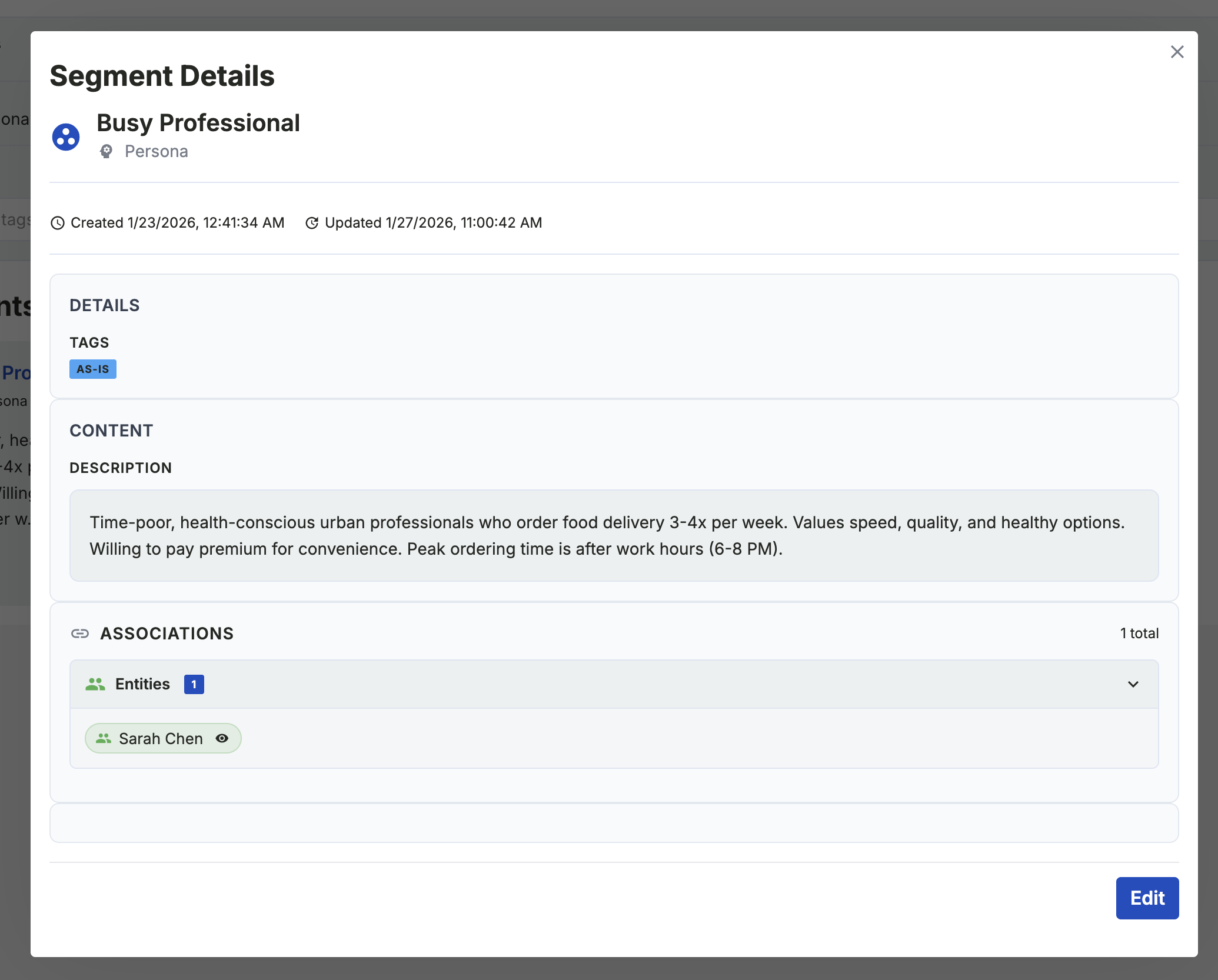
Entity detail modal with inline editing, tag management, and relationship links. (Click to zoom)
Advanced Features
Hierarchical Resources
Resources support parent-child relationships. Create nested structures like "API → Endpoints → Methods" for better organization.
Hourly Rate
Segments (roles, teams…) have an optional hourly rate in the company currency. It feeds the cost estimate in a solution's Efficiency window for steps that segment performs.
Tag Management
Add multiple tags to any entity for flexible categorization. Tags appear as filter options and help with search.
Relationship Tracking
Data browsers show relationship counts. Click to see all linked records. Relationships are bidirectional.
Add a Type on the Fly
Missing the type you need while adding a record? The Add type button beside the type picker creates one right there — it's selected automatically and you carry on saving, no trip to Settings. See Object Types.
How to Access
Each category has its own navigation menu item. Access data browsers from the main menu:
Main Categories
- group_work Segments → Segment browser
- science Research → Research browser
Additional Categories
- assignment Requests → Request browser
- inventory_2 Resources → Resource browser